Payment Requests
Here you can define settings for Payment Requests.
Request Types
These settings are global settings, which means they affect all users and all accounts (portals).
Here you can choose which Payment Request types can be created.
Are you missing Payment Requests for scheduled charges in the list of types you can enable?
Payment Requests for scheduled charges need to be enabled for your portal by Flywire. Please reach out to your Flywire contact if you want to use scheduled charges.
Pre-auth
Choose if you want users to have the option to create Pre-Authorization Payments when they create Payment Requests for one time payments.
 What are Pre-Authorization Payments?
A Pre-Authorization Payment temporary reserves the payment amount on a debit or credit card. The purpose of a pre-authorization is to verify that the cardholder has sufficient credit available to cover a transaction and to temporarily set aside that amount until you capture the funds.
Pre-Authorization Payments are only available for same-currency payments, not for FX payments.
Example for a Pre-Authorization Payment:
A guest checks into a hotel for a three-night stay, and you place a pre-authorization on their credit card for the estimated cost of the stay.
Check-In: You pre-authorizes $600 on the guest's credit card ($150 per night plus $150 deposit). This reduces the guest's available credit by $600 but is not yet charged.
During the Stay: The guest orders room service for $50.
Check-Out: The final bill is $500 ($450 for room charges plus $50 for room service). You capture $500 from the pre-authorization. The remaining $100 from the original hold is returned to the guest's available credit.
Use service description for installments
Choose if you want users to have the option to add a description when creating the Payment Request.
This is an optional description of the payment for internal purposes.
This description is only visible to you in Dashboard, not to the payer.
For Payment Requests with multiple installments, you can give each installment a description. For subscriptions, you can give the whole subscription a description.
Payer Information
Here you can define which fields are required when creating a Payment Request. For each account, choose:
Payer Information
Settings you make here affect creating Payment Requests in Dashboard, but not behavior of the fields outside of Dashboard. Some fields are required in the Commercial Payment Experience for making the payment, this does not change due to settings here.
Enable:
Enabled means this field is available to you when creating a Payment Request in Dashboard. It does not affect if the field is available to the payer in the Commercial Payment Experience.
Example:
If you disable Payer first name:
When users are creating a Payment Request in Dashboard for this account, they won't be able to add a first name.
If they are adding a new payer for the Payment Request, the first name field will not be shown. They won't be able to save the payer as a contact since contacts require at least a first name, last name, and email address.
If they are selecting an existing payer that already has a first name, the first name will be ignored by the Payment Request.The created Payment Request won't have the payer first name field in Dashboard.The email to the payer won't include their first name in the greeting (just Hi instead of Hi Peter)The first name field will still be enabled and required in the Commercial Payment Experience when the payer makes their payment.The name entered in the Commercial Payment Experience will be included in callbacks for the payment.
Required:
Means this field is required when creating a Payment Request in Dashboard. It does not affect if the field is required in the Commercial Payment Experience when creating the payment.
Example:
If Payer first name is not required:
You don't have to provide the payer's first name when creating the Payment Request.The first name field will still be required in the Commercial Payment Experience when the payer makes their payment.
Custom Payment Data
Enable:
Enabled means this field is available to you when creating a Payment Request in Dashboard. It does not affect if the field is available to the payer in the Commercial Payment Experience.
If the field is required due to the portal settings, it will be shown in the Commercial Payment Experience and your payer has to fill it out.
Required:
Means this field is required when creating a Payment Request in Dashboard.
If a field is set to required in Flywire Dashboard, you must provide it when you create the Payment Request or subscription. Optional fields can be left out.
Even if you leave the Required checkbox unchecked, the field might still be required due to the portal (account) settings.
If a field is required for the portal, it is required to create the payment.
If a field is not required due to Dashboard settings but is required for the portal, you can decide if you provide it or not when you create the Payment Request or subscription. If you don't provide it, your payer has to fill out the field in the Commercial Payment Experience form, since it is required to create the payment.
You can check which fields are required by checking your portal configuration.
Read Only:
Means if you provide this field when creating the Payment Request in Dashboard, your payer won't be able to edit it in the Commercial Payment Experience.
Note: If a field is required due to portal settings and you don't provide it when creating the Payment Request, your payer will still be able to fill it out in the Commercial Payment Experience when creating the payment.
Payment Options
These settings are global settings, which means they affect all users and all accounts (portals).
|
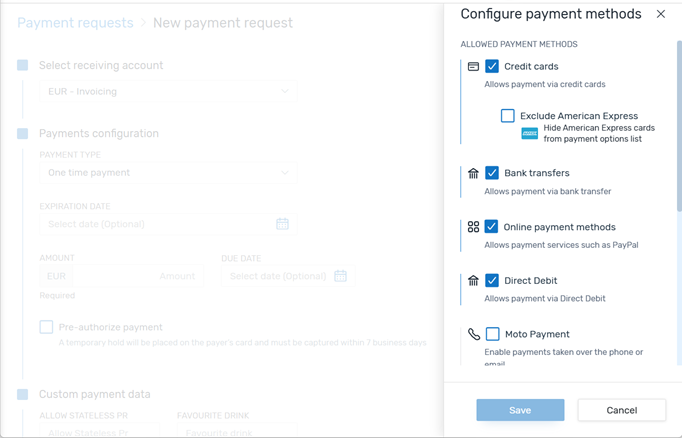
When you enable payment options, users will be able to define for each Payment Request they create which payment methods and currencies will be available to the payer. When you enable this option, you can also define here what the default settings are. These will be the pre-selected options, but every user can change them for each Payment Request individually. After you made changes here and saved them, users need to logout and login again for the changes to take effect. |
|
About filtering payment options
By default, Flywire displays all payment options for a portal. In some cases, you might want to restrict the available payment options, for example if you want to accept only bank transfers for payments over a certain amount or only show card payments a certain time before a booking.
You can use two filters to restrict payment options:
-
Restrict to specific types of payments
-
Restrict to specific currencies
Payment method type filters
Each filter you add means show this option. Each filter you leave out means hide this option.
If you don't provide any filters, all payment method types will be displayed in the Commercial Payment Experience.
Currency filters
The filters restrict payment options based on currencies:
| Local |
Show only payment options in the payer's local currency (e.g., only GBP for a payer in the UK). |
| Foreign |
Show only payment options not in the payers local currency (e.g., everything but GBP options for a payer in the UK). |
| FX |
Only show payment options that are a different currency to the billing currency (e.g., everything but GBP if your billing currency is GBP). What is the billing currency?
The billing currency is the currency in which the recipient of the payment is billing their payer. The billing currency depends on the |
| Non-FX |
Only show payment options that are in the same currency as the billing currency (e.g., only GBP if your billing currency is GBP). |
If you don't select any of the currency types, no filter is set, which means all available currency options will be displayed to the payer.
Be careful with combining those filters. Your payer might end up not being able to pay if you restrict the options too much. As a best practice, use either local/ foreign (when you want the options to depend on the payer's country) or fx / nonFX (when you want the options to depend on your billing currency).
Automatic Reminders
These settings are global settings, which means they affect all users and all accounts (portals).
Here you can define if and when Flywire will send reminder emails to your payers.
Automatic reminders
Defines if Flywire will send an email before or after the payment due date. Choose from the dropdown how many days before or after the payment due date you want to send reminder emails.
You can also set multiple reminders, for example 2 days before and 5 days after.
Reminders for bank transfer payments
Independently from the automatic reminders, you can send a reminder to your payers if a bank transfer payment is still in status initiated after two days.